
After revamping my blog with this awesome free theme from ThemeXpose that I absolutely love, I decided to remove the archive list widget for good in hopes of decluttering my sidebar. However, I still want to offer you, my dear readers, an easy way to backtrack and dig my old posts just in case you want to read about how I sucked at handling life, or just for the heck of hate-reading me, or simply, just because you want to get to know me more (aaaawww ♥). So I decided to go for an archives page instead.
Do blog archives matter?
Yes, they do. As a matter of fact, they are essential, not only that it gives your blog depth and credibility but it also cultivates loyalty to your readers as well. How? Having an Archives increases the amount of time your visitors spend on your site – giving them a chance of knowing you more which will eventually lead to keeping them engaged and loyal to your blog. Don’t just let your old blog posts sit in the dark and gather dusts. 🙂
For months, I’ve been using this code from jhwilson’s Create a Blogger Archive Page. Here’s how it looked like:
 |
| jhwilson’s archive page for blogger |
It works pretty well but I wanted it to look more organized. Don’t get me wrong, I love it and I’m really thankful for that. It’s great but it needs just a little rework. Since I am no good with javascript, I asked the awesome boyfie, Jan, to create an archive page derived from jhwilson’s code – only this time, it will be sorted by month and year. True to what I said, he’s awesome for he recreated it in a jiffy! Yay! And with a little help from my CSS skills, I added a little knickknack and voila! Here’s how it looks now (or you can visit my Archives page):
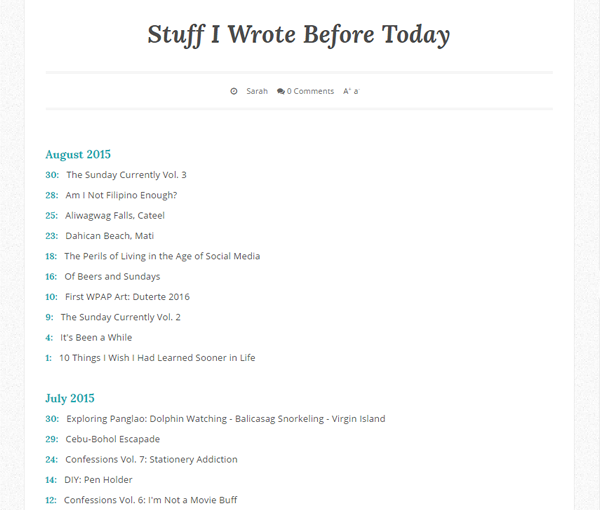 |
| JanCarlo’s archive page for blogger |
It’s better, isn’t it?
As generous as other programmers were, we would also like to share with you a step by step process on how to create this archive page for your blog. PLEASE NOTE THAT THIS WORKS ONLY FOR BLOGGER.
Step 1: Create A New Page
Open your blog and go to PAGES and click on NEW PAGE. (Fig. 1)
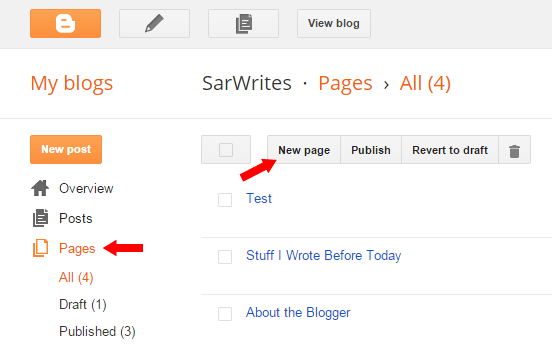 |
| Fig. 1 |
Name your new page however you want it. But I suggest you put a page name that is clear for your readers to know what the page is all about. Then click on the button that says HTML. (Fig. 2)
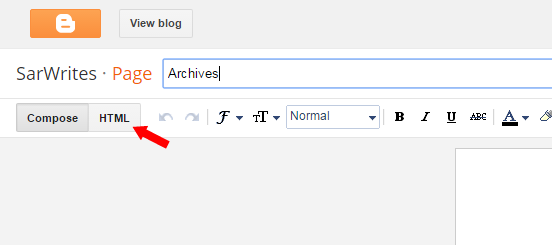 |
| Fig. 2 |
Step 2: Copy and Paste
Now you need to copy and paste the following code into your HTML field.
Show/Hide Code
It should look like the one below:
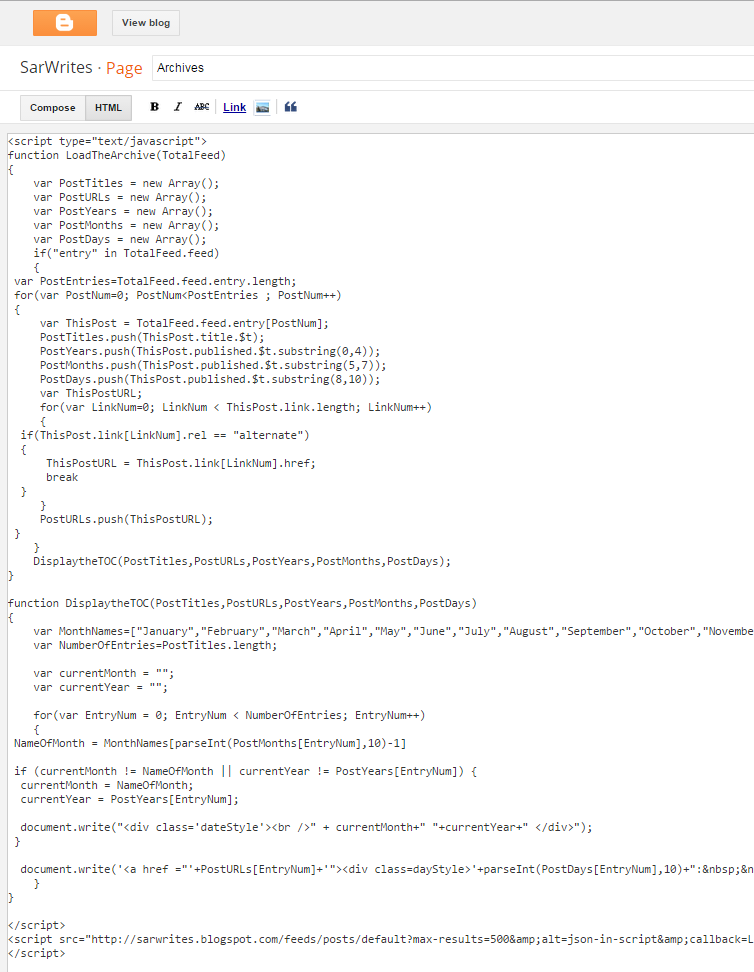 |
| Click image to enlarge |
Step 3: Customize
Don’t freak out! It’s just easy.
First you have to look for this:
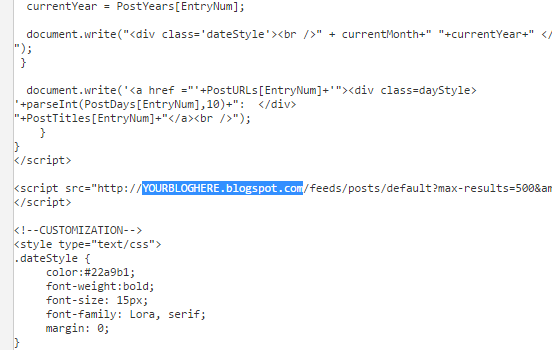 |
| Click anywhere on the HTML box and hit CTRL + F and type YOURBLOGHERE to find the url that is to be changed easily |
Change YOURBLOGHERE.blogspot.com into your web address.
From here, you may publish the page now. Or you can customize its look further.
Just look for the the CSS code at the bottom-most part and customize the highlighted parts according to your preference.
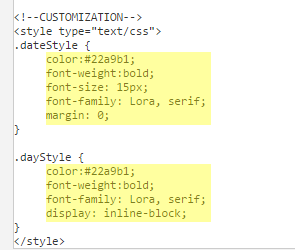 |
| Do not alter the class names e.g. (.dateStyle/.dayStyle) |
If you aren’t really familiar with CSS, just edit the values between : and ; to be safe.
For example, if you want to change the font color, just change color: #22a9b1; to color: #006DD9; or you may use the names of the colors instead of hexcodes like, color: pink;
Step 4: Publish the page and you’re good to go!
That’s it. I hope this helps. Please let me know if it works for you. And if you have questions regarding this matter, don’t hesitate to hit me a comment.
If you find this helpful, spread the love and share. 🙂
 gamecrackster