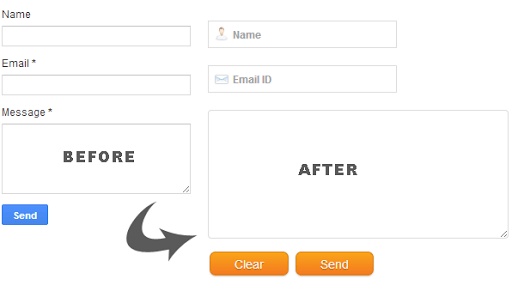
 In the first part of our series you learnt how to add a contact Form to your BlogSpot blog and control its display settings. Today you will learn how to change its stylesheet to reflect your custom styles with a more appealing design. You will learn today how to customize the Form input fields, add icons to it, add a “Clear Button” and play several tricks with your custom form. The form is built using XHTML Get or Post Methods unlike PHP Forms which are used widely today. If you have not referenced the first part of our tutorial then kindly read it first:
3. Customizing The Contact Form – The Fun Part!
- Go To blogger > Pages
- Choose a Blank Page
- Give it any title you like. I recommend “Contact Us”
- Switch to its HTML mode and paste the following HTML code inside it:
Customizing The Form:
- Go To Blogger > Template
- Backup your Template
- Click “Edit HTML”
- Update: Search for
and just above it paste the following CSS code:
/*—- Compatible contact Form by MBT —–*/
.contact-form-name, .contact-form-email, .contact-form-email-message {
max-width: 220px;
width: 100%;
font-weight:bold;
}
.contact-form-name {
background: #FFF url(http://2.bp.blogspot.com/-bNZePDihTPU/UZ-lhWAHXqI/AAAAAAAAJuo/aSVVE_A6HpE/s320/name.png) no-repeat 7px 8px;
background-color: #FFF;
border: 1px solid #ddd;
box-sizing: border-box;
color: #A0A0A0;
display: inline-block;
font-family: Arial,sans-serif;
font-size: 12px;
font-weight:bold;
height: 24px;
margin: 0;
margin-top: 5px;
padding: 5px 15px 5px 28px;
vertical-align: top;}
.contact-form-email {
background: #FFF url(http://3.bp.blogspot.com/-Wf_IBW4cEts/UZ-li4SsnvI/AAAAAAAAJuw/qYAi9lghY1E/s320/email.png) no-repeat 7px 10px;
background-color: #FFF;
border: 1px solid #ddd;
box-sizing: border-box;
color: #A0A0A0;
display: inline-block;
font-family: Arial,sans-serif;
font-size: 12px;
font-weight:bold;
height: 24px;
margin: 0;
margin-top: 5px;
padding: 5px 15px 5px 28px;
vertical-align: top;}
.contact-form-email:hover, .contact-form-name:hover{
border: 1px solid #bebebe;
box-shadow: 0 1px 2px rgba(5, 95, 255, .1);padding: 5px 15px 5px 28px;
}
.contact-form-email-message:hover {
border: 1px solid #bebebe;
box-shadow: 0 1px 2px rgba(5, 95, 255, .1);
padding: 10px;
}.contact-form-email-message {
background: #FFF;
background-color: #FFF;
border: 1px solid #ddd;
box-sizing: border-box;
color: #A0A0A0;
display: inline-block;
font-family: arial;
font-size: 12px;
margin: 0;
margin-top: 5px;
padding: 10px;
vertical-align: top;
max-width: 350px!important;
height: 150px;
border-radius:4px;
}.contact-form-button {
cursor:pointer;
height: 32px;
line-height: 28px;
font-weight:bold;
border:none;
}
.contact-form-button {
display: inline-block;
zoom: 1; /* zoom and *display = ie7 hack for display:inline-block */
*display: inline;
vertical-align: baseline;
margin: 0 2px;
outline: none;
cursor: pointer;
text-align: center;
text-decoration: none;
font: 14px/100% Arial, Helvetica, sans-serif;
padding: .5em 2em .55em;
text-shadow: 0 1px 1px rgba(0,0,0,.3);
-webkit-border-radius: .5em;
-moz-border-radius: .5em;
border-radius: .5em;
-webkit-box-shadow: 0 1px 2px rgba(0,0,0,.2);
-moz-box-shadow: 0 1px 2px rgba(0,0,0,.2);
box-shadow: 0 1px 2px rgba(0,0,0,.2);
}
.contact-form-button:hover {
text-decoration: none;
}
.contact-form-button:active {
position: relative;
top: 1px;
}.MBT-button-color {
color: #fef4e9;
border: solid 1px #da7c0c;
background: #f78d1d;
background: -webkit-gradient(linear, left top, left bottom, from(#faa51a), to(#f47a20));
background: -moz-linear-gradient(top, #faa51a, #f47a20);
filter: progid:DXImageTransform.Microsoft.gradient(startColorstr=’#faa51a’, endColorstr=’#f47a20′);
}
.MBT-button-color:hover {
background: #f47c20;
background: -webkit-gradient(linear, left top, left bottom, from(#f88e11), to(#f06015));
background: -moz-linear-gradient(top, #f88e11, #f06015);
filter: progid:DXImageTransform.Microsoft.gradient(startColorstr=’#f88e11′, endColorstr=’#f06015′);
border-color: #F47C20!important;
}
.MBT-button-color:active {
color: #fcd3a5;
background: -webkit-gradient(linear, left top, left bottom, from(#f47a20), to(#faa51a));
background: -moz-linear-gradient(top, #f47a20, #faa51a);
filter: progid:DXImageTransform.Microsoft.gradient(startColorstr=’#f47a20′, endColorstr=’#faa51a’);
}<!–[if IE 9]>
.contact-form-name {
background: #FFF url(http://2.bp.blogspot.com/-bNZePDihTPU/UZ-lhWAHXqI/AAAAAAAAJuo/aSVVE_A6HpE/s320/name.png) no-repeat 7px 0px;
}.contact-form-email {
background: #FFF url(http://3.bp.blogspot.com/-Wf_IBW4cEts/UZ-li4SsnvI/AAAAAAAAJuw/qYAi9lghY1E/s320/email.png) no-repeat 7px 6px;
}
<![endif]–>
@media screen and (-webkit-min-device-pixel-ratio:0) {.contact-form-name {
background: #FFF url(http://2.bp.blogspot.com/-bNZePDihTPU/UZ-lhWAHXqI/AAAAAAAAJuo/aSVVE_A6HpE/s320/name.png) no-repeat 7px 6px;
padding: 15px 15px 15px 28px;}
.contact-form-email {
background: #FFF url(http://3.bp.blogspot.com/-Wf_IBW4cEts/UZ-li4SsnvI/AAAAAAAAJuw/qYAi9lghY1E/s320/email.png) no-repeat 7px 8px;
padding: 15px 15px 15px 28px;}
.contact-form-email:hover, .contact-form-name:hover{
padding: 15px 15px 15px 28px;
}.contact-form-button {
height: 28px;}
}
- To change button colors edit the class .MBT-button-color
- To change the button color on mouse hover edit the class .MBT-button-color:hover and for active mode edit .MBT-button-color:active
4. Add the Form anywhere you like!
- To add the form to sidebar. Copy the HTML code in Step#4 and paste it inside HTML/JavaScript Widget
- To add the form to Post editor, switch to HTML mode and paste the code inStep#4 inside it
 gamecrackster

